Google Blueprint CSS tutorial

This is a basic tutorial of the first use of Google Blueprint as a CSS layout.

Download Blueprint CSS
Download the main library att Google Code, at the time of this writing that is the file “Blueprint 0.7.1.zip”.
http://code.google.com/p/blueprintcss/downloads/list

There are three folders in the ZIP-file, first you have the “blueprint” folder which contains the ready to use CSS-files (ie.css, print.css and screen.css). While there are more files in that folder we will only concern ourselves with those in directly in the “blueprint” folder and not subfolders.

I will not go into detail about the two other folders, for your information the “lib” folder contains YAML source for the project and the last folder “tests” contains sample pages you can play around with if you’d like.

Fast reference PDF
There is a nice “cheat page” you can print out from a PDF, this is optional though but I found it very helpfull at least while learning the new classes.

Link the CSS-files
All you need to do is copy the three CSS-files in the “blueprint” folder into a directory of your choice in the main HTTP directory. I assume you put them in a subdirectory simply called “blueprint”. Next you need to link them in the HTML-files where you wish to use them, add the following code:

<link rel=”stylesheet” href=”blueprint/screen.css” type=”text/css” media=”screen, projection”>
<link rel=”stylesheet” href=”blueprint/print.css” type=”text/css” media=”print”>
<!–[if IE]><link rel=”stylesheet” href=”blueprint/ie.css” type=”text/css” media=”screen, projection”><![endif]–>

The first CSS defines how to display the page on normal monitors and projectors. The second file is for printing and the last file, surrounded with an IF condition to only be used by Internet Explorer, is specific instructions for the naughty web browsers that do not follow the standards.

Make a HTML file that uses the Blueprint
I assume you know HTML and CSS so I skip the basics and move straight to the new classes that blueprint offers. Simply put you need an outer DIV of the class “container” that will be the parent object of all others. Inside of this you can decleare HTML code as normal. A real simple first page could look something like this:

<div class=”container”>
<div class=”span-24 last”>
<h1>Hello World</h1>
</div>
</div>

The outer DIV is the container of all objects. The second div defines itself as a “span-24” and “last” class. Span-24 is the max width (950 pixels) and will span the entire area inside the container, last is added to signal this is the final column on this row (it’s also the only so in this case maybe a bit overkill).

Now after this it’s very easy to expand the concept, for example to make a “top headline and under menu + content” layout simply write:

<div class=”container”>
<div class=”span-24 last”>
<h1>Hello World</h1>
</div>
<div class=”span-4″>
The menu
</div>
<div class=”span-20 last”>
The content
</div>
</div>

This still doesn’t solve the more complex aspects of CSS-layout when you need everything to be “just right” but with an overall layout made this easy you can focus on the end tweaking instead of re-inventing the basic wheel everytime you need to make a new design.

Conclusion
The absolute best part about the Blueprint CSS is a “small” feature internally namned “rest.css” which is part of the “screen.css” file. This resets all browser settings to one single setting (Firefox, Internet Explorer etc all have slightly different default values for border, margins, padding etc) making cross platform development much much easier. Secondly, and the acctual main purpose, the ability to easily create new columns and layout modifications really improves start up development time of new designs. While the Blueprint CSS just have very basic settings it’s often these basic settings that screw up every new design I make since I tend to aim a little too high everytime I write a new CSS-class.
CSS layout made easy

While it hurts my nitpicking handcodeing image to admit it, some frameworks are to good to ignore. One of them I found recently in Google BlueprintCSS. It’s a very flexible framework and with a license “you cannot refuse”.

I”ve used to code all CSS and HTML by hand (still!) and it is getting pretty tiresome to stumble over the same defects in every design I make. To pressed for time I’ve never developed a framework of my own, rather just copy and pasted bits and pieces from my old code that I knew was working.

There are many other CSS frameworks out there but somehow I fell for Google Blueprint though I have far from done an extensive testing on them. If anyone have found any other framework very good and flexible please post a comment, I’d love to hear it.

Surf safely and openly through any firewall

How to surf safe

On a unsecure network where you are afraid that traffic might be sniffed?
Inside a corporate network where the firewall is in your way?
On a network where you do not want to leave a trace of where you’re surfing?

Then this guide is for you! It will enable you to surf any network you’re on as if you where at home.

Requirements

A trusted OpenSSH server that you can administrate (you’re home computer for example?).
Windows: Download and install PuTTY
Linux: Access to the SSH command
Firefox webbrowser

The “secure” site

First of all you have to setup a computer in a network that you trust, you can use your home computer or if there is any other. This computer must run an OpenSSH server.

First off all, we want to change the OpenSSH servers port from 22 (default) to 443 (standard for HTTP SSL traffic). The reason for this is that port 443 is almost always open and usually not monitored by firewalls. To do this log on your home server and type:

sudo nano /etc/ssh/sshd_config

Now find the line that says “Port 22” and change it to “Port 443”. Save the file and exit. Now restart the OpenSSH server.

sudo /etc/init.d/ssh restart

Make sure you’re home network allows access to port 443 to this machine. Now you’re set to use this as you’re home for all surfing.

The “unsecure” network

In order to use our home machine for surfing we need the “unsecure” site to allow us either to use the SSH command or to download and run PuTTY (in Windows). I’ll explain mainly from a Windows client but will also link the Linux-commands that are necessary.

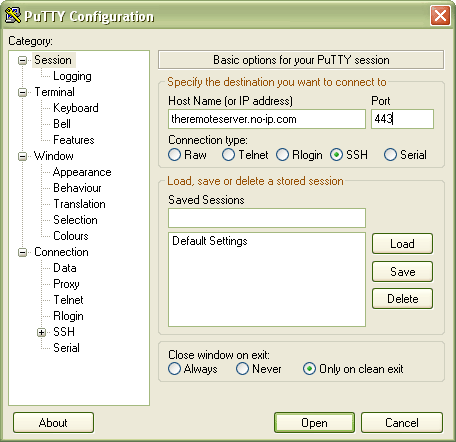
The first thing you need to do is download and install PuTTY in order to use SSH. Once it downloaded start it and try and establish a connection to your OpenSSH server. It might look something like this:

On Linux to connect using SSH on a different port simply write:

ssh user@theremoteserver.no-ip.com -p 443

Try and connect to your home server (tip: the no-ip.com service is great to keep track of dynamic IP home computers). If you type your IP/domain and change to port 443 and choose “open” you should first answer if you trust the computer in question and then be prompted for a username and password. If you log in and it works then we’re set for tunneling traffic through that connection. First disconnect because we need to setup some more parameters for the SSH connection.

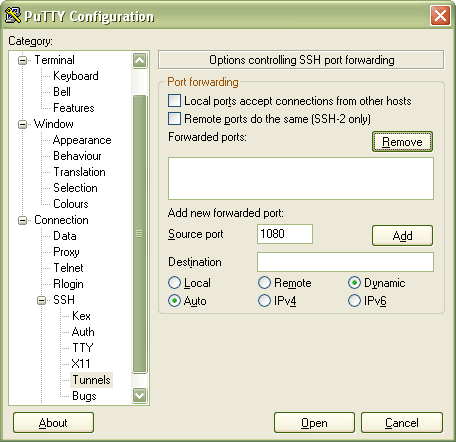
We want to tunnel normal HTTP-traffic.  To do this we need to create a tunnel in SSH, in PuTTY go into “Connection” then “SSH” then “Tunnels” and choose to add a source port, 1080 for example, with dynamic setting. It would look something like this:

In Linux type:

ssh user@theremoteserver.no-ip.com -p 443 -d 1080

When you choose “add” for the port “D1080” should be shown in the “Forwarded ports” area. Now connect using “open” (make sure all the previous settings are still the same with server and port) and you will once again be prompted for username and password which you supply. When this is done the tunnel is open and ready to use.

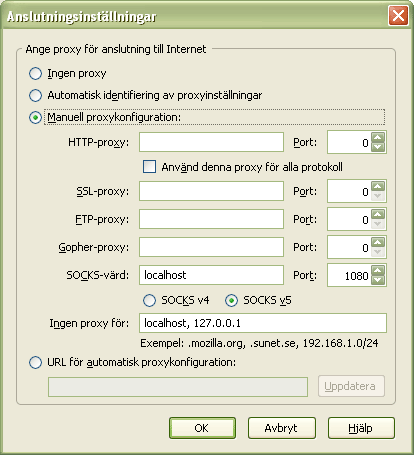
Now start Firefox and choose “Tools” from the menu then “Options” then the “Advanced” tab. Choose “Connections” and modify it to use manual configuration with a Socks host to port 1080 on the localhost. It will look something like this (unfortunately the screenshot is in Swedish):

Once that is done just choose ok and start surfing through the tunnel! A good way to test if it worked is for example http://www.hostip.info/. If the tunnel is working the IP shown there should be that of the OpenSSH server and not the client you are surfing from.

A word of caution: this only tunnels HTTP traffic, the DNS requests are still processed the same way as is e-mail and every other service.

IIS easy restart

One annoying thing about the Microsoft Internet Information Server (IIS) is that it’s quite a few clicks in order to restart it through the normal GUI. If you use it as a development environment and happen to make an infinite loop or some other bad thing it’s annoying to have to go through all those steps every time.

To save some time here is a simple tip, since the IIS run as a normal service simply make a file called “kick iis.bat” (at least that is what I call it) and enter the following:

net stop w3svc
net start w3svc

This should work for the standard installation of IIS. This will take the server down and then back up again, faster than the GUI just double click the file. I keep it on my dekstop… that might give you an idea of how often I trash the IIS hehe.

Perl on Apache2 / Ubuntu 8.04.1 JeOS

Perl acctually works “out of the box” in Apache 2 installed on Ubuntu 8.04 JeOS. I found much confusion on this subject while browsing the Internet so I thought I’d post a simple HOWTO to get the first script running.

First you need a Ubuntu 8.04.1 JeOS server with a LAMP installation, see my previous guide on how to make one.

The first thing that can be confusing is where to find the right configuration files for Apache, while not needed for this guide I thought I’d post the current version for this guide here. A good overview of all distributions / versions can be found over at the Apaches wiki.

Debian, Ubuntu (Apache 2):

ServerRoot              ::      /etc/apache2
DocumentRoot            ::      /var/www
Apache Config Files     ::      /etc/apache2/apache2.conf
                        ::      /etc/apache2/ports.conf
Default VHost Config    ::      /etc/apache2/sites-available/default, /etc/apache2/sites-enabled/000-default
Module Locations        ::      /etc/apache2/mods-available, /etc/apache2/mods-enabled
ErrorLog                ::      /var/log/apache2/error.log
AccessLog               ::      /var/log/apache2/access.log
cgi-bin                 ::      /usr/lib/cgi-bin
binaries (apachectl)    ::      /usr/sbin
start/stop              ::      /etc/init.d/apache2 (start|stop|restart|reload|force-reload|start-htcacheclean|stop-htcacheclean)

Now as I said, Perl is allready working so we just have to find it in our system! As since in the chart above the cgi-bin is located in /usr/lib/cgi-bin. Here we want to put a Perl Hello World script.

sudo nano /usr/lib/cgi-bin/test.pl

In the script I type the following very standard Hello World script:

#!/usr/bin/perl -w
print “Content-type: text/plainnnHello World!n”

We need to make it executable so we chmod it:

sudo chmod 755 /usr/lib/cgi-bin/test.pl

To make sure it’s working a good tip is to try it at the command line first to check for any spelling errors (especially in the header, errors there will lead to a 500 internal server error response).

perl /usr/lib/cgi-bin/test.pl

If it runs and returns the content-type line, two new lines and a hello world then we’re set! Browse to the IP of the server, in my case it’s 192.168.0.16 so I enter:

http://192.168.0.16/cgi-bin/test.pl

Hello World!